
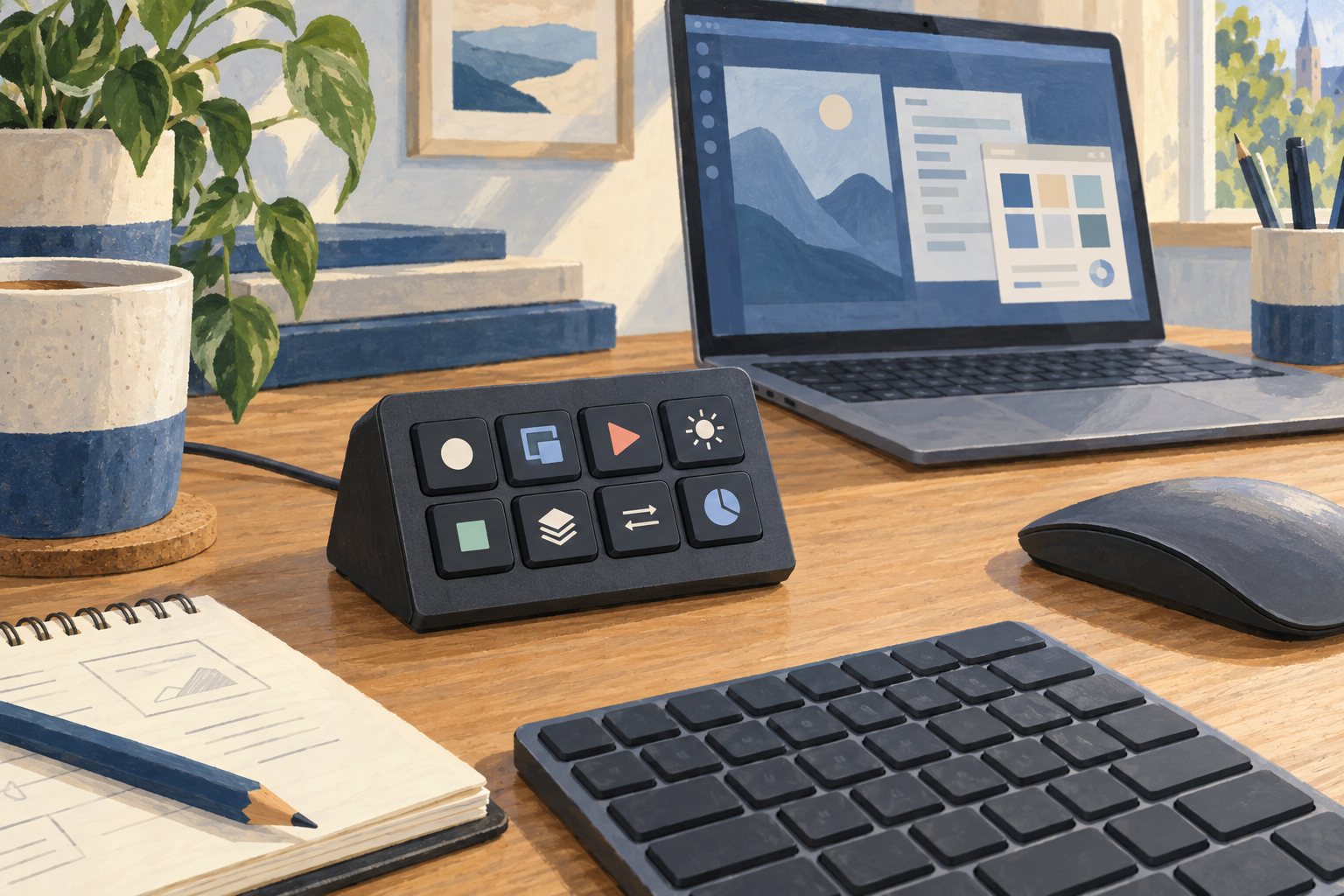
Generic editorial illustration; this is not an Elgato product photograph or a screenshot of configured actions.
The Elgato Stream Deck Neo is worth considering when you can name several repetitive computer actions that would be easier to reach through labelled physical buttons. You do not need to stream video to have that use case. Opening a recurring set of work tools, invoking a supported application command or running a familiar shortcut may be enough.
The purchase is harder to justify if you mainly like the appearance of the buttons and have no routine in mind. Begin with the work, then decide whether a separate controller helps. We have not tested the Neo; this guide combines its documented capabilities with a practical selection method.
Affiliate disclosure: As an Amazon Associate, Best Desk Setup earns from qualifying purchases. Shopping links may earn a commission at no extra cost to you.
Table of Contents
What the Neo provides
Elgato lists eight customisable LCD keys, an information bar and two touch controls for navigating layouts. It uses Stream Deck software and a fixed USB-C cable. The manufacturer's current product page lists Windows 10 64-bit or later and macOS 13 or later, with a suitable USB connection. Check the Stream Deck Neo specification and requirements against the exact version you intend to buy.
The useful part is being able to give a repeated action a visible, memorable place. It is not automatic knowledge of your applications: the actions still need to be configured and supported.
Make an action list before an accessory list
For a day or two, note tasks that repeatedly interrupt your work. Include only tasks you actually repeat. Examples might be opening a project folder, bringing a reference application forward or invoking a shortcut you regularly forget.
Then check how each task can be controlled. An application may offer a keyboard shortcut, a supported integration or no suitable control at all. Confirm that route before assuming a button can perform it. Where a work computer restricts software installation, establish whether Stream Deck and the required integrations are permitted.
| Candidate action | A useful pre-purchase check |
|---|---|
| Open a recurring work tool | Can the software launch or focus the intended application reliably? |
| Trigger an application command | Is there a supported integration or documented shortcut? |
| Control a call function | Does it work in the exact calling app, and can you verify the resulting state? |
| Run several steps together | Do all steps remain correct if a window or file is already open? |
Start with a small, stable layout
Choose a few actions and keep them in the same positions while you learn the arrangement. Frequent rearrangement makes a physical control less useful because you must keep checking what each button now does.
Label actions by their result, using terms you recognise immediately. Separate application-specific commands from actions that should work anywhere. If the same shortcut behaves differently depending on the focused window, make that limitation obvious in your setup.
For multi-step routines, test each part separately before combining them. A sequence that works once from a clean desktop may behave differently during normal work. Prefer routines that are easy to understand and recover from if one step does not run.
Check the result of important controls
For a call-mute action, verify the state in the calling application; do not assume a button press succeeded because you touched the controller. For commands that submit, delete or otherwise commit something, keep the normal confirmation step where appropriate.
That is a configuration decision rather than a reason to avoid the device. The most useful office shortcuts remove repetitive navigation while leaving you able to see what happened. Avoid building a complicated chain for a task that is already quick and clear.
Does it earn its place on the desk?
Place the intended footprint where you would reach it during work. Check that it does not crowd the mouse or force the keyboard away from its comfortable position. The controller should support the main working area, rather than becoming the object everything else has to work around.
Allow for the fixed cable route and the available USB connection. Our desk cable-management guide can help keep it accessible without adding a loose loop across the keyboard. If screen space is the underlying problem, address the display arrangement first with our home-office monitor guide.
Buying recommendation
Consider the Neo when you have a short list of supported, frequently repeated actions and permission to run the required software. Try the relevant keyboard shortcuts first. If they already feel effortless, a physical controller may add little. If you repeatedly search for commands or forget combinations, visible controls may be worth evaluating.
Check the black Elgato Stream Deck Neo on Amazon UK
This link was checked against the black Stream Deck Neo product page. Confirm the exact Neo model, selected colour, seller, contents and current return terms before ordering.
Is eight buttons enough?
Judge it by the actions you want immediately visible. Additional layouts can extend the arrangement, but repeated navigation between pages may be inconvenient if you need many controls at once. Map your routine before choosing a controller size.
Is it a Steam Deck?
No. Elgato's Stream Deck Neo is a computer shortcut controller. It is a different type of product from Valve's Steam Deck handheld gaming computer.
Research checked on 9 September 2026. This guide makes no claim of measured time savings or hands-on integration testing.