
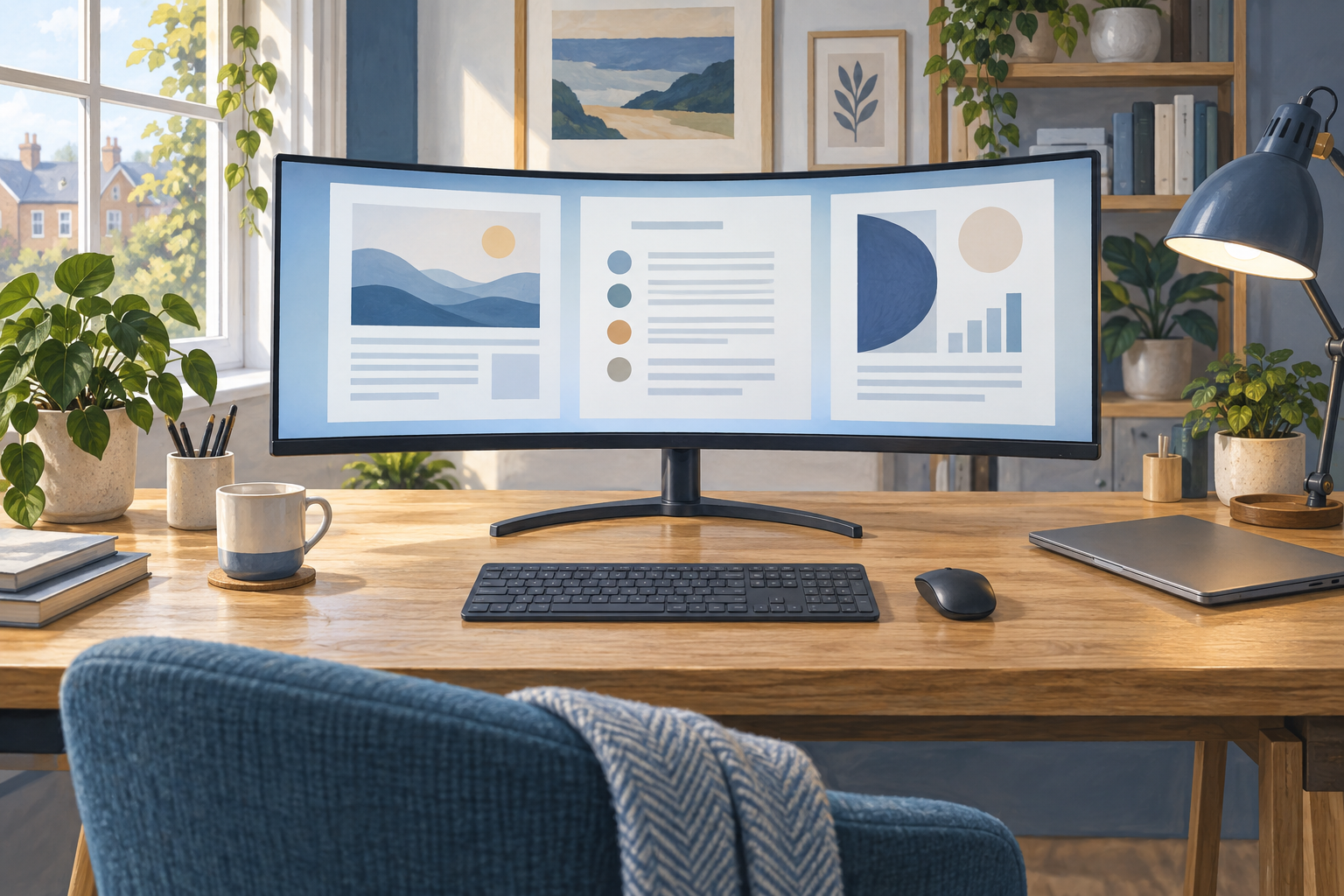
Generic editorial illustration; the monitor shown is not an LG product photograph.
The LG 34WR50QK belongs on the shortlist for a home-office buyer who wants a wider working area without building the whole desk around an elaborate monitor hub. The strongest reason to choose it is a clear need for side-by-side windows. The main checks are the stand position and how your laptop will connect.
We have not tested this monitor. This guide uses LG's published information and practical comparisons to help you decide whether its approach suits your desk.
Affiliate disclosure: As an Amazon Associate, Best Desk Setup earns from qualifying purchases. Shopping links may earn a commission at no extra cost to you.
Table of Contents
The specification that matters for office work
LG lists a 34-inch curved 3440 × 1440 display, a 100Hz refresh rate, picture-by-picture support and a tilt-adjustable stand. Its UK product page shows DisplayPort and two HDMI inputs. Check the exact 34WR50QK-B model in LG's UK specification, since similar-looking model names are easy to confuse.
For a document-and-browser workflow, the useful feature is the continuous horizontal workspace. You can place the item you are writing beside the material you are consulting. Decide how many windows genuinely need to remain visible; squeezing everything onto one screen can make each window too narrow to work in comfortably.
Start with two useful windows
An ultrawide does not require a complicated layout. Begin with the application you use most in the larger section and a reference window beside it. Adjust the split to the work: writing a report needs a different arrangement from comparing columns in a spreadsheet.
Avoid shrinking text simply to fit a third window. The time saved switching applications is not worthwhile if you spend it leaning forward to read. Before replacing a working monitor, try a side-by-side arrangement on your current screen and note exactly where you run out of room.
Budget for the correct laptop connection
Check your laptop's video-output specification and select a cable or adapter that supports the resolution and refresh rate you intend to use. A matching plug alone does not establish the capability of the entire connection.
Treat laptop charging as a separate requirement when planning this setup. If you want to arrive at the desk and attach only one cable, compare the complete installation with a monitor explicitly offering suitable USB-C video and charging. A lower monitor price may still be good value with a separate charger; it depends on how much you value that daily convenience.
| Priority | What to compare |
|---|---|
| A wider desktop for one computer | Screen size, readable text and the necessary video cable. |
| One-cable laptop docking | Explicit video, charging and peripheral support in the competing monitor. |
| Two computers visible at once | Picture-by-picture arrangements and how you will control each computer. |
| Minimal extra accessories | Stand positioning and whether you already own the needed cables. |
Check the stand before buying a monitor arm
The included stand's tilt adjustment does not establish that the screen will sit at the height you prefer. Measure your current viewing arrangement and compare the LG's published dimensions. Consider the position you actually use when sitting at the desk, rather than the appearance of a staged setup.
If you need an arm or riser, include it in the total price. Check mounting compatibility, monitor weight and the support offered by your desk before choosing an arm. Do not spend the accessory budget twice by ordering the monitor first and discovering afterwards that the intended mount does not fit.
Our home-office monitor guide helps establish those broader requirements.
Picture-by-picture does not finish a two-computer setup
Displaying two sources and controlling two computers are separate tasks. Decide whether you will keep two sets of controls, use peripherals that switch between devices, or add a suitable switching arrangement. Do not assume a picture-by-picture feature automatically provides keyboard and mouse switching.
Also decide whether you really need both machines visible simultaneously. If you alternate between work and personal use, changing the input may suit you better than permanently dividing the screen. That keeps more of the display available to the computer you are currently using.
Who should shortlist it?
Consider the 34WR50QK when your priority is a straightforward wider workspace and you are happy to plan video, charging and peripheral connections separately. Compare more integrated alternatives if your main frustration is reconnecting a laptop every day. Check the stand arrangement before judging which option is cheaper overall.
Check the LG 34WR50QK listing on Amazon UK
The model appeared in Amazon UK search during research. Recheck the selected model, seller, condition and current price on the listing. For the physical installation, use our desk cable-management guide to keep separate video and charging cables accessible.
Common buying questions
Is an ultrawide automatically better than two monitors?
No. It provides a continuous desktop, while two screens can be positioned independently. If you regularly need a portrait screen or dedicate one whole display to a call, compare that arrangement before switching.
Does picture-by-picture let me share one keyboard?
Do not infer that from the display feature. Check the required keyboard and mouse switching arrangement separately, including any cables or software it needs.
Research checked on 9 September 2026. This is a documentation-based guide, with no claimed measurements of colour accuracy, motion quality or long-term reliability.