
Are you experiencing wrist pain, hand fatigue, or discomfort after long hours at your computer? An ergonomic keyboard could be the solution. This guide provides a comprehensive review of the best ergonomic keyboards available in the UK in 2026, helping you find the perfect fit for your needs and budget.
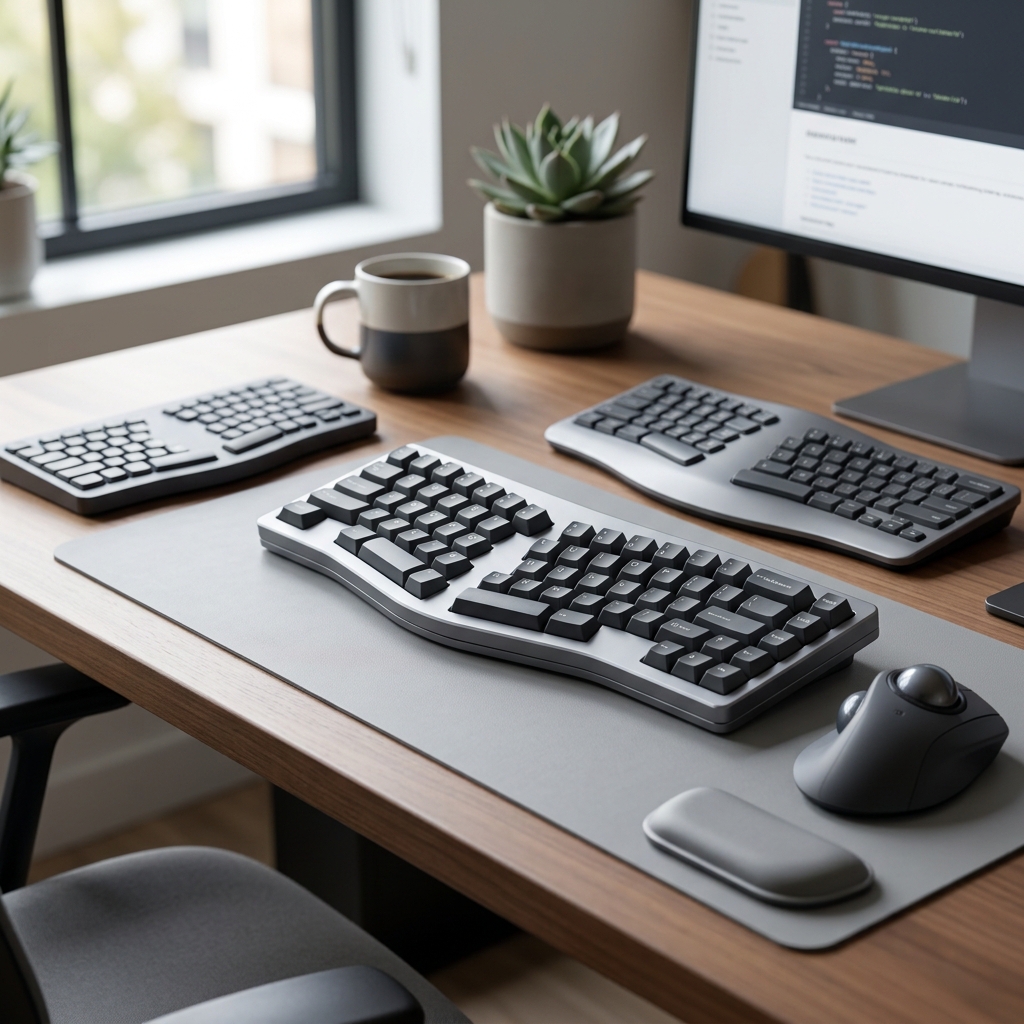
Table of Contents
What is an Ergonomic Keyboard & Why Do You Need One?
An ergonomic keyboard is designed to reduce strain on your hands, wrists, and forearms. Unlike traditional keyboards, which force your hands into unnatural positions, ergonomic keyboards prioritise a more neutral and comfortable posture. This is achieved through various designs, such as split layouts, contoured shapes, and adjustable features.
The need for ergonomic solutions has grown significantly, particularly post-pandemic, with more people working from home. Increased screen time and often less-than-ideal home office setups have led to a rise in Repetitive Strain Injuries (RSIs) like carpal tunnel syndrome. Awareness of the long-term health implications of poor posture and repetitive movements is also increasing, making ergonomic keyboards a proactive investment in your well-being.
Types of Ergonomic Keyboards: A Breakdown
There’s a wide range of ergonomic keyboard types available, each with its own strengths and weaknesses.
Split Keyboards
These keyboards are divided down the middle, allowing you to position each half independently. This promotes a more natural shoulder and wrist alignment. Examples include the Kinesis Advantage2 and the Split KB Ergo Mechanical Keyboard.
- Pros: Excellent for shoulder and wrist comfort, highly adjustable.
- Cons: Can have a steep learning curve, may require more desk space.
Contoured Keyboards
These feature a sculpted shape designed to fit the natural curves of your hands. The Microsoft Sculpt Ergonomic Keyboard is a prime example.
- Pros: More intuitive to use than split keyboards, good wrist support.
- Cons: Less adjustable than split keyboards, may not suit all hand sizes.
Vertical Keyboards
These keyboards position your hands in a handshake-like position, significantly reducing pronation (palm-down rotation) of the forearm. While less common, they can be highly effective for certain users.
- Pros: Very effective for reducing forearm strain.
- Cons: Significant learning curve, can feel awkward initially.
Adjustable Keyboards
These keyboards allow you to adjust the angle, tilt, and sometimes even the split of the keyboard to find the most comfortable position. The Logitech Ergo K860 falls into this category.
- Pros: Versatile and adaptable to different users.
- Cons: Adjustment options may be limited compared to dedicated split keyboards.
Compact/Tenkeyless Keyboards
These keyboards omit the number pad, making them smaller and allowing you to position the keyboard closer to your body. This can reduce reaching distance and shoulder strain.
- Pros: Reduces reaching distance, saves desk space.
- Cons: No number pad, may not be suitable for number-intensive tasks.
Key Features to Consider When Buying an Ergonomic Keyboard (UK)
Choosing the right ergonomic keyboard requires considering several key features:
Key Switch Type
- Mechanical: Durable, tactile feedback, typically louder. (Often found in the Split KB Ergo)
- Membrane: Quieter, less expensive, less tactile feedback. (Common in the Fellowes HyperGrip)
- Scissor: Low-profile, quiet, good tactile feedback. (Found in many laptop keyboards and some ergonomic models)
Adjustability
Look for keyboards with adjustable tilt, split, and tenting options to fine-tune the keyboard to your specific needs.
Wrist Rest
A comfortable wrist rest can provide additional support and reduce strain. Some keyboards include integrated wrist rests, while others require purchasing one separately.
Connectivity
Choose between wired (USB) and wireless (Bluetooth) connectivity. Wireless keyboards offer greater flexibility, while wired keyboards provide a more reliable connection.
Programmable Keys
Programmable keys allow you to assign custom functions and shortcuts, increasing efficiency and reducing repetitive movements.
Operating System Compatibility
Ensure the keyboard is compatible with your operating system (Windows, macOS, Linux).
Top 5 Ergonomic Keyboards Reviewed (2026)
Here’s a detailed review of five leading ergonomic keyboards available in the UK market:
| Keyboard | Price (2026) | Pros | Cons | Verdict |
|---|---|---|---|---|
| Kinesis Advantage2 Keyboard | £329.99 | Highly adjustable, excellent comfort, contoured key wells. | Steep learning curve, expensive. | Best for serious ergonomic needs, if you’re willing to invest the time to learn it. |
| Microsoft Sculpt Ergonomic Keyboard | £119.99 | Affordable, comfortable, split design. | Limited adjustability, membrane keys. | A great entry-level ergonomic keyboard for those on a budget. |
| Logitech Ergo K860 Keyboard | £149.99 | Adjustable tilt, split design, comfortable wrist rest. | Wireless only, can feel bulky. | A solid all-rounder with good adjustability and comfort. |
| Split KB Ergo Mechanical Keyboard | £189.99 | Fully split, mechanical keys, highly customizable. | Significant learning curve, requires assembly. | Ideal for enthusiasts who want a fully customisable split keyboard. |
| Fellowes HyperGrip Keyboard | £69.99 | Very affordable, padded wrist rest, basic ergonomic design. | Membrane keys, limited adjustability, basic features. | A budget-friendly option for basic ergonomic support. |
Budget Ergonomic Keyboards: Affordable Options in the UK
You don’t need to spend a fortune to get some ergonomic benefits. Here are a few affordable options:
- Fellowes HyperGrip Keyboard (£69.99): As reviewed above, this provides a basic level of ergonomic support at a very affordable price point. Expect membrane keys and limited adjustability.
- Microsoft Ergonomic Keyboard (£79.99): A simpler version of the Sculpt, offering a slightly contoured design without the split.
These keyboards offer a good starting point for users on a tighter budget, but performance and adjustability will be limited compared to more expensive options.
Ergonomic Keyboard Setup Tips for Optimal Comfort
Simply buying an ergonomic keyboard isn’t enough. Proper setup is crucial:
- Posture: Sit upright with your shoulders relaxed and your feet flat on the floor.
- Desk Height: Adjust your desk and chair so your elbows are bent at a 90-degree angle when typing.
- Wrist Support: Use the keyboard’s wrist rest (or a separate one) to support your wrists and keep them in a neutral position.
- Keyboard Position: Position the keyboard directly in front of you, ensuring your shoulders are relaxed and your wrists are straight.
- Ergonomic Workstation: Consider a monitor arm, ergonomic mouse, and adjustable chair to create a fully ergonomic workstation.
Ergonomic Keyboard FAQs
Q: How long does it take to adjust to an ergonomic keyboard?
Adjustment time varies depending on the type of keyboard and your individual comfort level. It can take anywhere from a few days to several weeks to become fully comfortable. Be patient and allow yourself time to adapt.
Q: How do I clean and maintain my ergonomic keyboard?
Unplug the keyboard before cleaning. Use a soft, dry cloth to wipe down the keys and surface. For stubborn dirt, slightly dampen the cloth with water. Avoid using harsh chemicals or abrasive cleaners.
Q: What if I experience pain after switching to an ergonomic keyboard?
Some initial discomfort is normal as your muscles and tendons adjust. However, if the pain persists or worsens, stop using the keyboard and consult a healthcare professional.
Q: Are ergonomic keyboards compatible with all operating systems?
Most ergonomic keyboards are compatible with Windows, macOS, and Linux. However, it’s always best to check the product specifications before purchasing to ensure compatibility.
Q: What is the difference between wired and wireless ergonomic keyboards?
Wired keyboards offer a stable connection and don’t require batteries. Wireless keyboards provide more freedom of movement, but require batteries or charging and may experience occasional connection issues.