
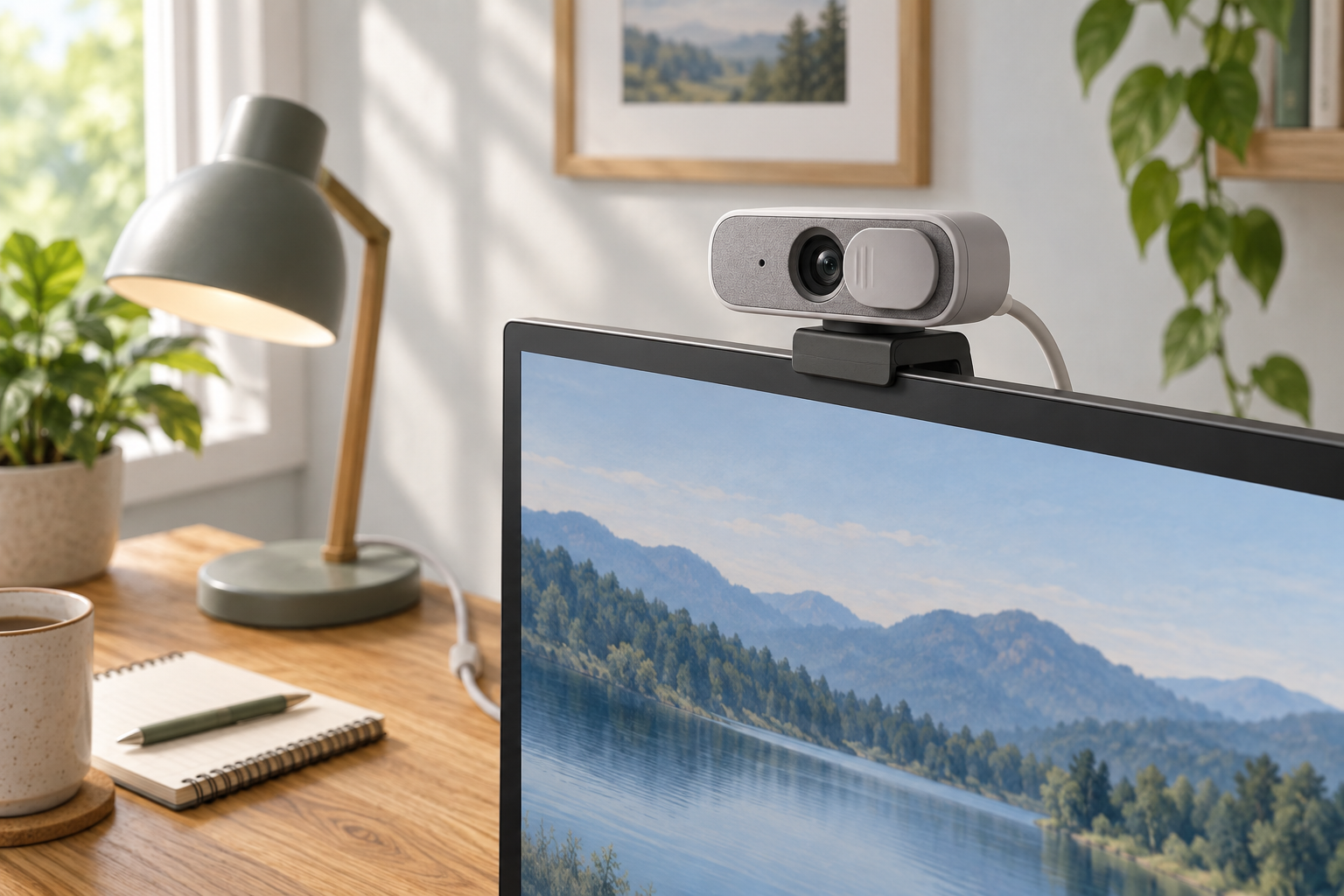
Generic editorial illustration of a monitor-mounted webcam; it does not depict the Elgato Facecam Neo.
The Elgato Facecam Neo is worth considering for a fixed video-call position when you can route its attached USB-C cable to the computer as instructed. Check that route before buying, particularly if your monitor normally connects everything through a hub or docking station.
The camera's supported modes are only part of the purchase. Placement, lighting and the calling application also affect the result. This guide uses Elgato's documentation; we have not tested image quality.
Affiliate disclosure: As an Amazon Associate, we earn from qualifying purchases.
Table of Contents
Can the fixed cable reach your computer?
Elgato lists a fixed USB-C cable of approximately 1.4m. Its user manual instructs users to connect the camera to the computer and says not to use a USB hub. A USB-A adapter is possible but is not included. See the Facecam Neo user manual.
Measure the actual route from the top of the monitor to the intended computer port. Allow for cable routing behind the display and movement of any monitor arm. The straight-line distance across the desktop is not necessarily the length the cable needs to travel.
On a standing desk, check the route at both heights. A computer on the floor and a camera on a rising monitor can need substantially different slack. Avoid a plan that pulls on the camera or connector when the desk moves.
Our cable-management guide covers ways to organise that route. If your setup depends on an unconfirmed connection path, resolve it before treating the Facecam Neo as a suitable purchase.
What video modes are available?
Elgato lists 1080p at 60 or 30 frames per second, with lower-resolution modes also available. The UK page specifies autofocus and a 77-degree field of view. These are hardware capabilities described on the Facecam Neo product page.
They do not promise that every meeting app will transmit 1080p at 60fps. Check the settings and limitations of the service you use. If you are recording locally, check the selected capture mode in that application too.
Choose the buying criterion that matches the task. A clear seated call, a recorded demonstration and a livestream may each place different demands on the camera and software. Do not pay for a mode solely because it appears at the top of a specification table.
Plan the view from the monitor
Before installing the camera, think about where your eyes and the centre of the screen sit. Check that the mounting position is secure and that it does not cover an important part of the display.
Use a preview to inspect both your face and the visible background. A wide screen can tempt you to sit far off-centre while looking at another window; include that real position when checking the framing.
The optional Camera Hub software provides image controls. Start with the camera in a useful physical position, then adjust the image. Software controls are easier to evaluate when you are not simultaneously changing the camera angle and the room lighting.
Check lighting at the time you work
Make a short preview in the morning and later in the day if a window changes the room's light. Look for a face that is clearly visible without a much brighter background dominating the scene.
Try moving the camera or a light before adding more equipment. If you use a desk lamp, avoid placing it where it shines directly into your eyes or reflects distractingly in the screen. The appropriate arrangement depends on the room; we have not measured this camera's low-light performance.
Our home-office webcam guide helps compare other camera options if your lighting or mounting requirements are unusual.
Treat camera and audio settings separately
Select the intended camera in the meeting app, then confirm the microphone and playback device independently. Adding a webcam should not leave you guessing which audio input the call is using.
Run a short test before an important meeting. Check the framing, privacy shutter and audio selection, and confirm the setup again if you change computers. A saved preference in one application does not establish the selection in every other application.
Who should shortlist the Facecam Neo?
Shortlist it for a seated desk setup where the attached cable reaches an appropriate direct connection and the available framing works well. Consider a different camera if your layout needs a detachable longer cable or relies on a hub arrangement the manufacturer does not recommend.
You can check the Elgato Facecam Neo offer on Amazon UK. Confirm the selected product is Facecam Neo rather than another Facecam generation or a multi-product bundle, and check the current system requirements on Elgato's UK page.
Research checked on 9 September 2026. No hands-on sharpness, autofocus or low-light test is claimed.